
Course → 1.3 Working With Files
Lesson 1.3 of the Free Claude Cowork Course · 25 minutes
Overview
Every team has one: the shared folder nobody wants to open. Inconsistent names, seven versions of the same document, files from three years ago mixed with last week’s. This lesson is where Cowork starts earning its keep — you’ll take a deliberately messy practice folder and turn it into something organized, and learn the safety habits that make file operations low-risk.
What You’ll Do
✓
Have Cowork map and describe a messy folder before touching anything
✓
Organize renamed copies by client and internal use, preserving every original
✓
Compare near-duplicates and extract amounts with source citations and uncertainty flags
The Lesson
Say “start lesson 1.3” with the course folder open. Audit scenarios/messy-folder into audit.md without changing its 16 files. Compare the two May 12 notes, then create organized/ with renamed copies and a source-to-copy map. Review the copies before extracting amounts into receivables.md.
Audit before organizing, copy before replacing, and cite the original source for every extracted figure. Keep ambiguous items separate. An invoice documents a billed amount; it does not establish that the amount remains unpaid.
Try It Now
Use the synthetic practice folder first. Review audit.md, verify the organized copies against the originals, and check a receivables.md citation. On a real folder, request an audit and a proposed copy plan before any changes; review scope and sharing before proceeding.
Follow the clicks: audit, compare, copy, extract
Follow this real Lesson 1.3 run in the same Cowork conversation and synthetic course folder used in Lessons 1.1 and 1.2. The screenshots are native Windows PNGs with no screenshot upscaling. App labels and layout can vary by version and plan. Start with start lesson 1.3 or continue; Lesson 1.1 shows folder setup.
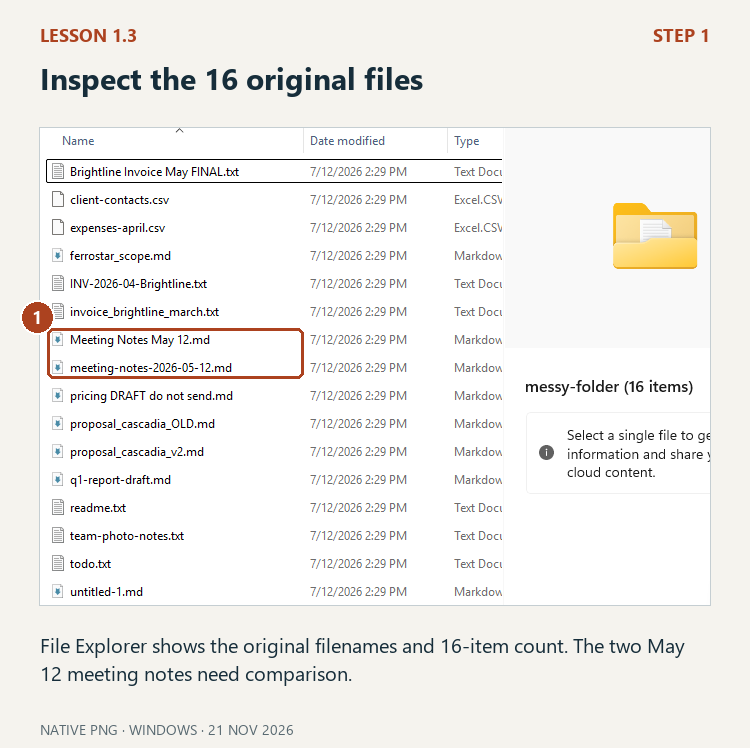
Step 1: Inspect the 16 original files
In File Explorer, open your course folder, then scenarios, then messy-folder. Inspect the 16 original files. Return to the same Cowork conversation with this course folder attached and send start lesson 1.3. Lesson 1.1 shows folder setup.
Step 2: Audit before organizing
Send the audit request below in Claude and press Enter. Wait for audit.md, then open it from the course folder. Check the problems list against the originals: Jordan Pike uses semicolons in a comma-separated file, and expense dates use three formats. The audit writes a report without editing inputs.
Read everything in scenarios/messy-folder and write audit.md in the course root: what each file is, plus a 'problems found' section ? duplicates, outdated versions, broken data, files that don't belong.
Step 3: Compare content before choosing a version
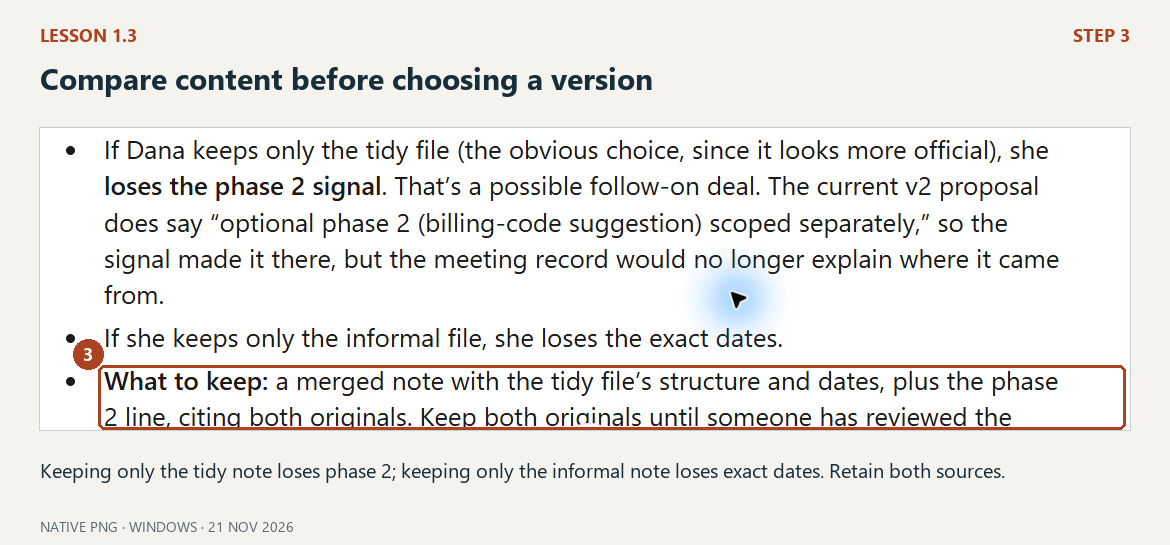
Read both May 12 originals yourself before requesting a comparison. The informal note uniquely mentions possible phase 2 billing codes. The formal note provides July 15 go-live and May 20 extract review. Ask Claude to compare and recommend what Dana should retain. A reviewed merged derivative can combine these details; preserve both original notes. This run keeps separate copies and does not create that derivative.
Step 4: Request renamed copies and a mapping
Enter the copy request in the same Claude message box and press Enter. Name the destination and the preservation constraint explicitly. Request a source-to-copy map so you can check every renamed file. Do not fix CSV contents during this organizing step.
Create organized/ in the course root with subfolders by client plus internal/, and copy every file into the right place with consistent names like 2026-03-invoice-brightline.txt. Do not touch the originals. Add a note listing files you were not sure about, plus a source-to-copy mapping for all 16 originals. Preserve both meeting notes byte-for-byte as separate copies; do not create a merged derivative yet. Stop after organizing.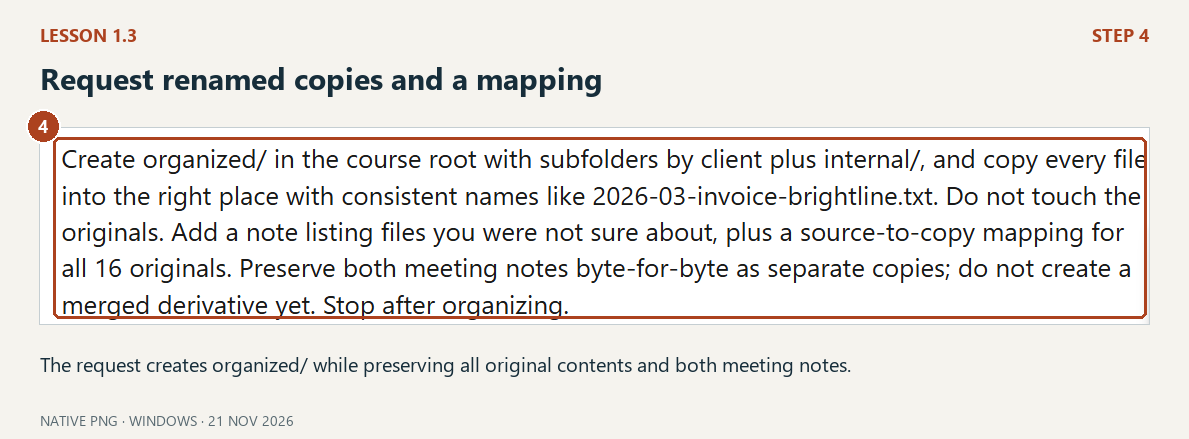
Step 5: Review the organized copy
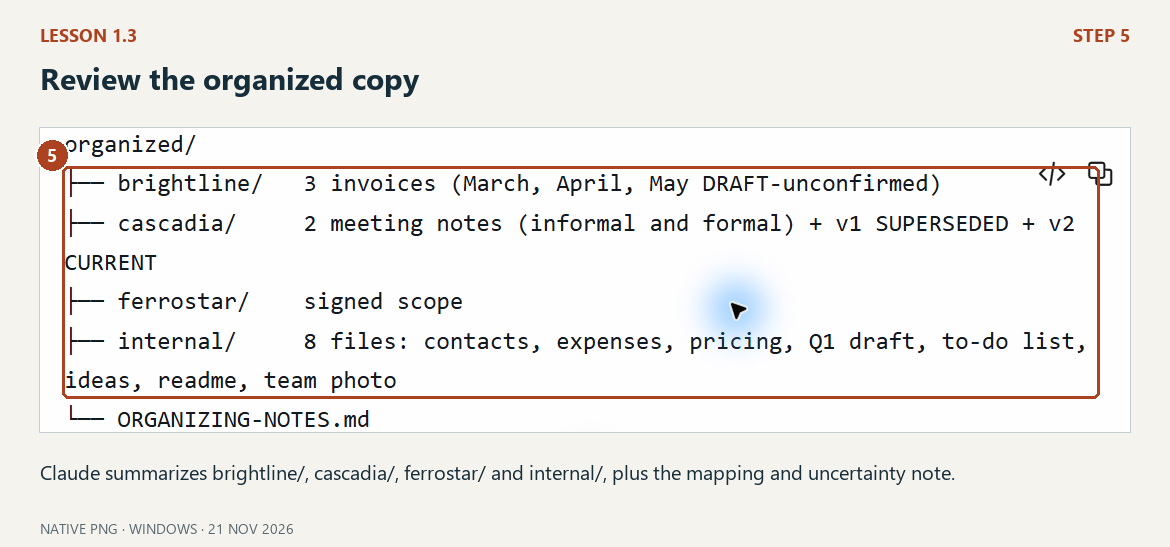
Wait for completion, then open organized/ in File Explorer and read ORGANIZING-NOTES.md. It maps every source to its copy and explains uncertain names or placements. Compare copies with originals; all 16 matched byte-for-byte in this run. The tree shown is Claude?s completion summary, independently checked against the saved folder. A folder called internal/ does not itself restrict access.
Step 6: Keep billed and unpaid amounts distinct
Send the extraction request below, then open receivables.md from the course folder. Our file opened in Visual Studio Code; Ctrl+Shift+V opens Markdown Preview. Your editor may differ. Check the opening warning before using any total. None of these source files establishes a confirmed unpaid balance.
From the originals, extract every outstanding amount owed to Metamorfeus into receivables.md ? invoice, client, amount, source file ? and flag uncertain items. Distinguish documented invoiced amounts from confirmed unpaid balances. Keep the May $6,000 rough note separate, and separate proposals or contract values from issued invoices. Cite original source paths. Stop for review after saving.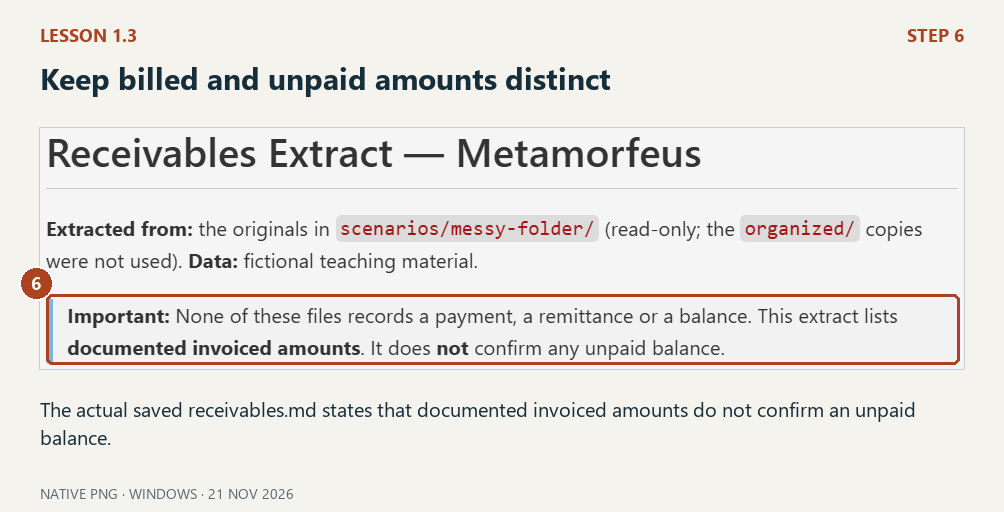
Step 7: Trace a figure back to its source
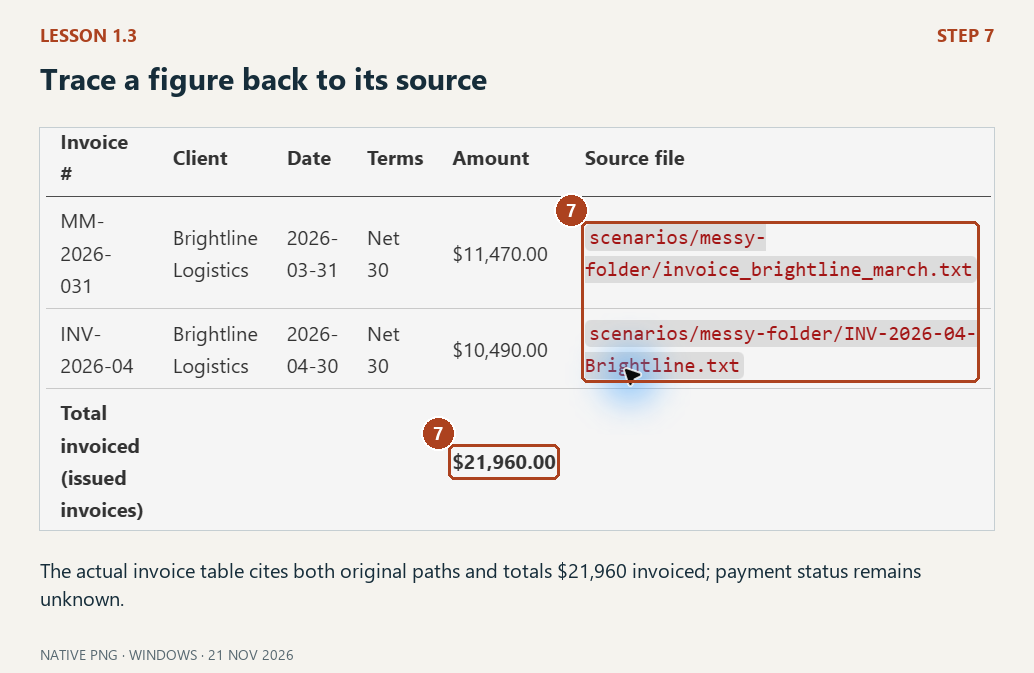
Scroll to the issued-invoice table and open the cited original file. April is 54 ? $185 + $500 = $10,490; March is 62 ? $185 = $11,470. Their sum is $21,960 invoiced. Keep May?s $6,000 unconfirmed note outside that total. Ferrostar?s contract and Cascadia?s proposals belong in separate categories, not issued receivables. Report your source check to Claude.
Step 8: Finish the quiz and save progress
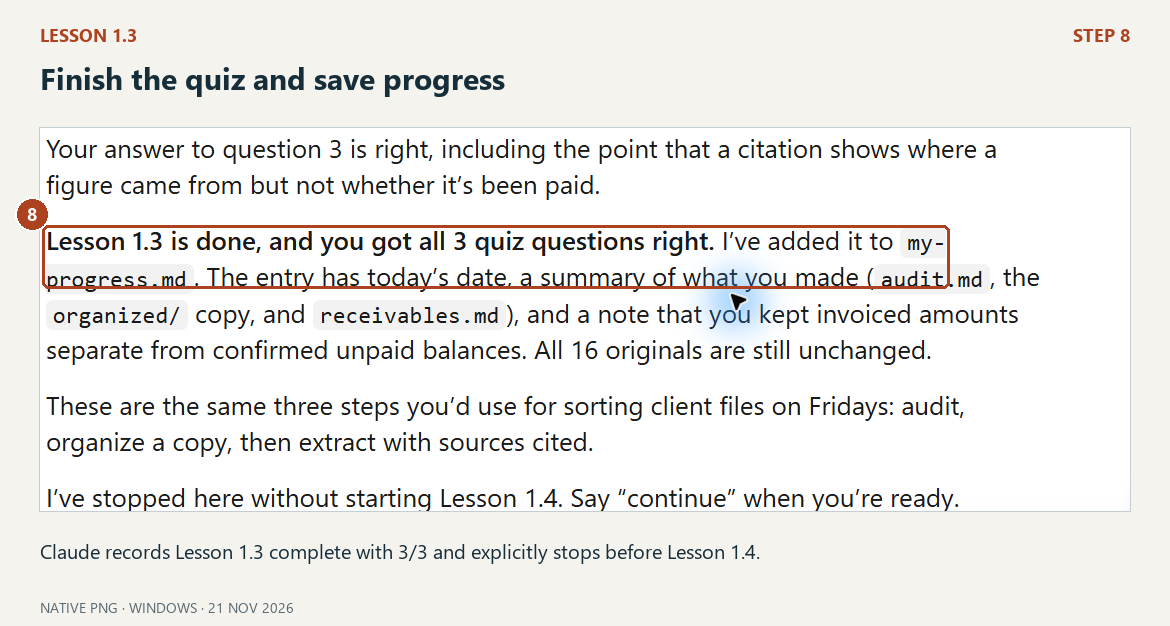
Answer the three Check yourself questions in your own words: why audit and copy first, why compare near-duplicates by content, and why require source citations. Ask Claude to update my-progress.md. Open that file to confirm the result. This demonstration completed Lesson 1.3 with 3/3 and stopped before Lesson 1.4.
What’s Next
← Previous: 1.2 Your First Task
Next: 1.4 Documents and Decks →
New here? Download the full course free on GitHub.
Rolling this out for a whole team? See our live team training.
New here? Download the full course free on GitHub.