
Course → 1.2 Your First Task
Lesson 1.2 of the Free Claude Cowork Course · 20 minutes
Overview
The single biggest skill in this lesson is briefing. A useful four-line brief states the goal, inputs, output and constraints. You will compare plans from a vague request and a clear brief, then complete one real task using the brief → plan → execute → review loop.
What You’ll Do
✓
Learn the four-part brief: goal, inputs, output and constraints
✓
Compare the plans produced by a vague request and a clear brief on the same task
✓
Create and review a Brightline invoice summary, adding one requirement before the file is saved
The Lesson
Say “start lesson 1.2” with the course folder open. Brief Claude in four parts: goal (a payment-status summary for Dana), inputs (the three Brightline invoice files), output (brightline-payment-status.md, with a table and clearly labeled total), and constraints (flag uncertainty instead of guessing). Inspect the plan before approving execution.
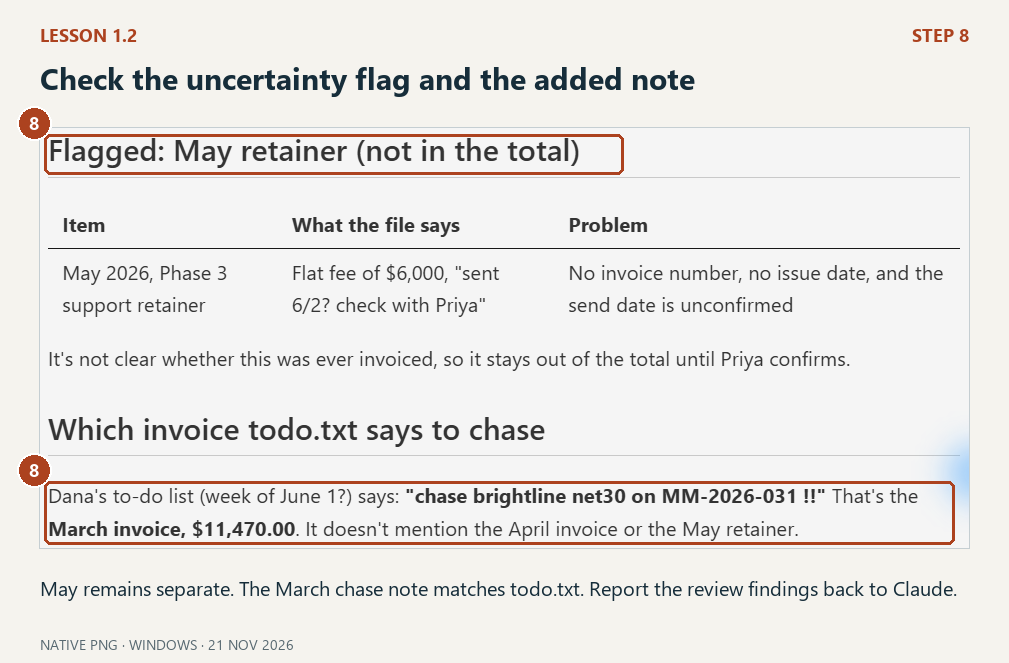
During the same task, add: “Also note which invoice todo.txt says to chase.” Review the saved file against the sources. The March and April invoices total $21,960; the $6,000 May retainer note is ambiguous and stays separate. An invoice amount is not proof that it remains unpaid.
Try It Now
Write a four-line brief for a task from your work: goal, inputs, output and constraints. Review the plan before execution, add a requirement when needed, and check the saved result. Use synthetic practice data until you understand the folder scope.
Follow the clicks: brief, plan, execute, review
Follow this real Lesson 1.2 run in the same Cowork conversation and synthetic course folder used in Lesson 1.1. The screenshots are native Windows PNGs with no screenshot upscaling. App labels and layout can vary by version and plan. Start with start lesson 1.2 or continue; Lesson 1.1 shows folder setup.
Step 1: Send the weak brief
Start Lesson 1.2 with the course folder open. In the same Cowork conversation, send the request below. For this exercise, Claude shows a plan first and does not save a file. The Send control is at the lower right of the composer.
Figure out the Brightline invoice situation.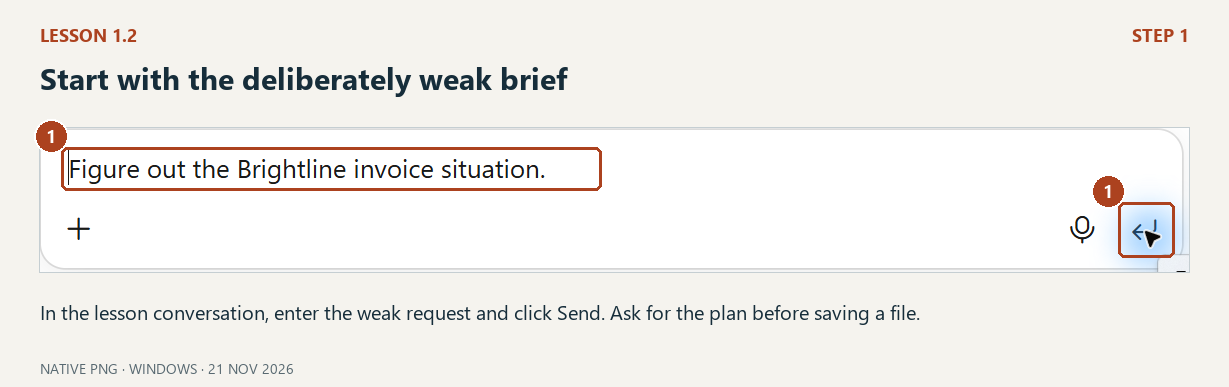
Step 2: Inspect the assumptions before approving the plan
Read the plan and its assumptions. In this real run, the weak plan could have counted the May note and described all amounts as owed. The source files do not establish payment status. This is the point to improve the brief, before Claude creates the output.
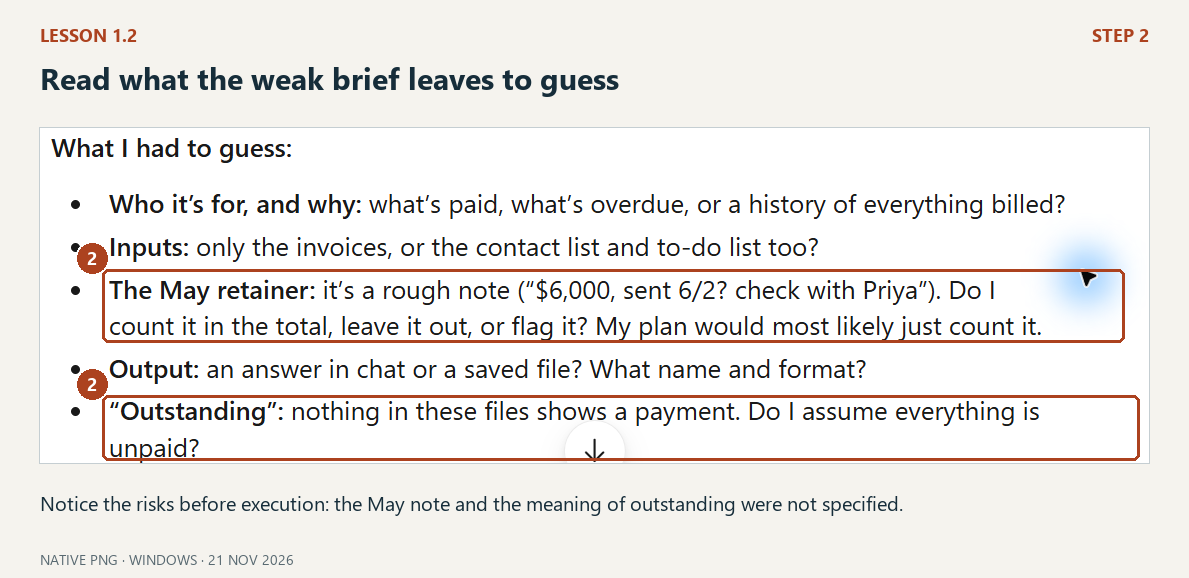
Step 3: Give Claude the four-line brief
Replace the vague request with a specific goal, named inputs, a named output and constraints. Type all four lines in the message box, then click Send. Here the constraints keep May separate and distinguish documented invoice amounts from proven unpaid balances.
Goal: a payment-status summary for Dana.
Inputs: the three Brightline invoice files in scenarios/messy-folder.
Output: brightline-payment-status.md in the course root, with invoice number, date, amount and a clearly labeled total.
Constraints: flag ambiguity instead of guessing; keep the May retainer separate and do not treat missing payment evidence as confirmed non-payment.
Step 4: Compare the revised plan
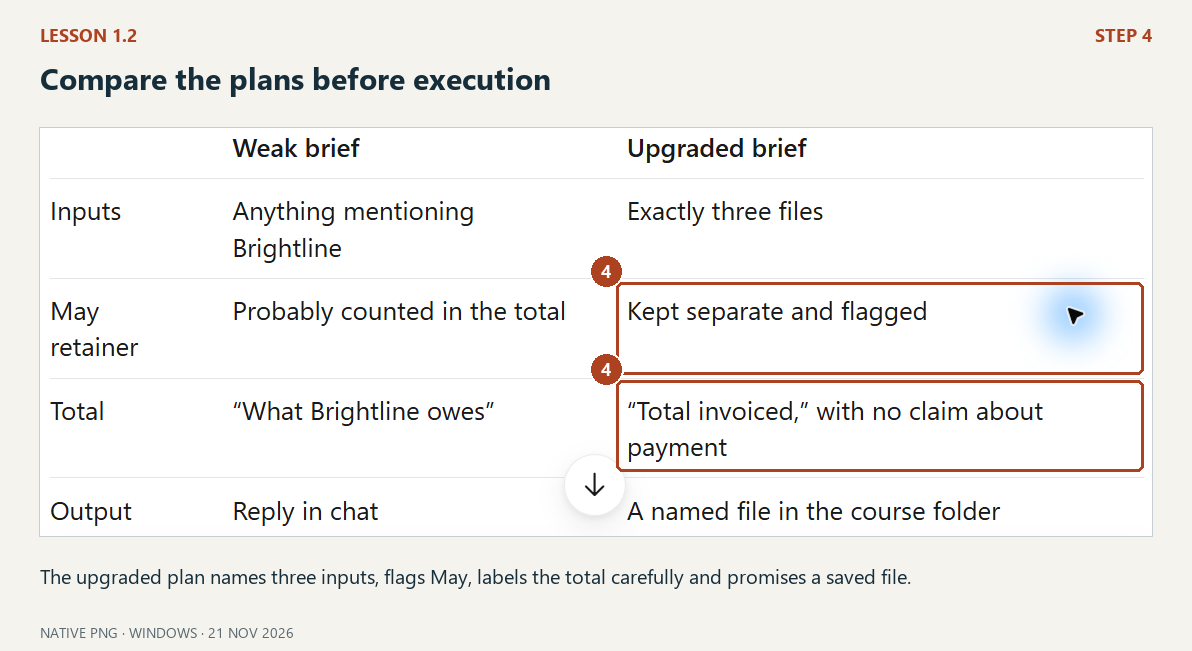
Compare the new plan with the first one. The improved plan uses exactly the three invoices, keeps May separate and writes a named Markdown file. Its total is invoiced, not a claim that every invoice remains unpaid. Approve execution only after the plan matches your brief.
Step 5: Redirect at an in-progress checkpoint
Tell Claude to go ahead and pause after reading the invoices, before saving. This capture uses an explicit checkpoint so the redirect can be inspected. Once Claude has read the inputs, send the requirement below in the same conversation. Do not start a new conversation or repeat the entire task.
Also note which invoice todo.txt says to chase.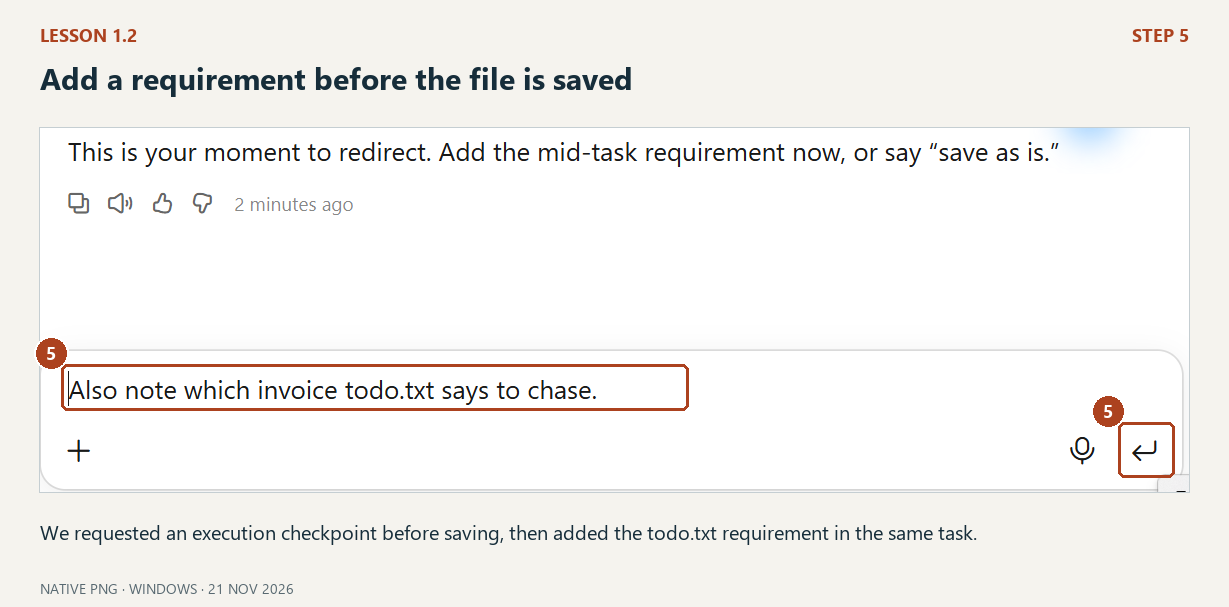
Step 6: Check the completion message
Wait for Claude to finish. It confirms brightline-payment-status.md was saved and that the new requirement was incorporated. In this run, todo.txt points to March invoice MM-2026-031 for $11,470. The remaining plan stayed in place. Treat this message as a cue to review the actual file, not as proof by itself.

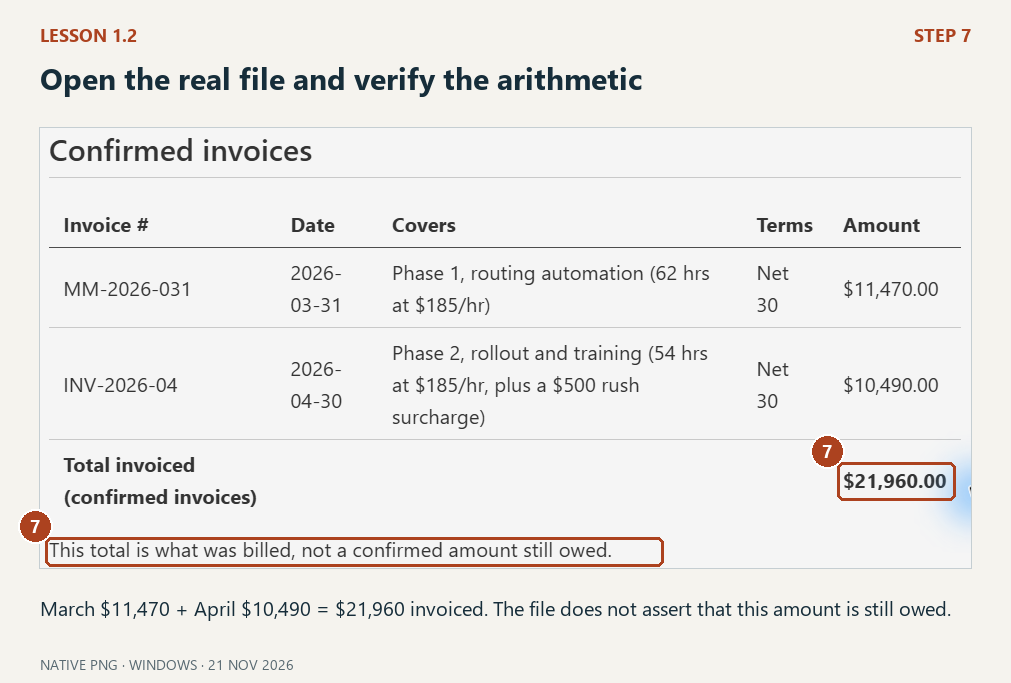
Step 7: Open the saved file and check its total
In File Explorer, open your course folder, then double-click brightline-payment-status.md. Our Markdown file opened in Visual Studio Code; we clicked Open as Preview in the editor toolbar. Your editor may differ. Check the numbers against the original files: 62 × $185 = $11,470; 54 × $185 + $500 = $10,490; their sum is $21,960. This is the documented invoice total, not a confirmed outstanding balance.
Step 8: Verify May and the redirect against the sources
Scroll down in the actual saved file. The $6,000 May retainer has no invoice number or issue date, and the send date is unconfirmed; keep it outside the confirmed-invoice total. Compare the chase section with todo.txt: it names MM-2026-031, the March invoice. Report your findings, including errors, to Claude. All 16 original scenario files remained unchanged in this demonstration.
Step 9: Finish the quiz and confirm progress
Answer the three Check yourself questions in your own words: the four parts of a brief, why plan review is cheap, and why the May note must stay uncertain. Ask Claude to save your result in my-progress.md. This real run finished Lesson 1.2 with 3/3 and stopped before Lesson 1.3.

What’s Next
← Previous: 1.1 What Is Claude Cowork
Next: 1.3 Working With Files →
New here? Download the full course free on GitHub.
New here? Download the full course free on GitHub.